Webhooks
Webhooks allow you to receive real-time notifications about changes to clusters within your monitored areas. When a relevant event occurs, WFS will send a POST request to your specified URL, allowing you to integrate the data into your systems.
Permissions
To create a webhook, you must have the appropriate permissions. Please contact your OroraTech contact to request access if you do not already have it.
How to Create a Webhook
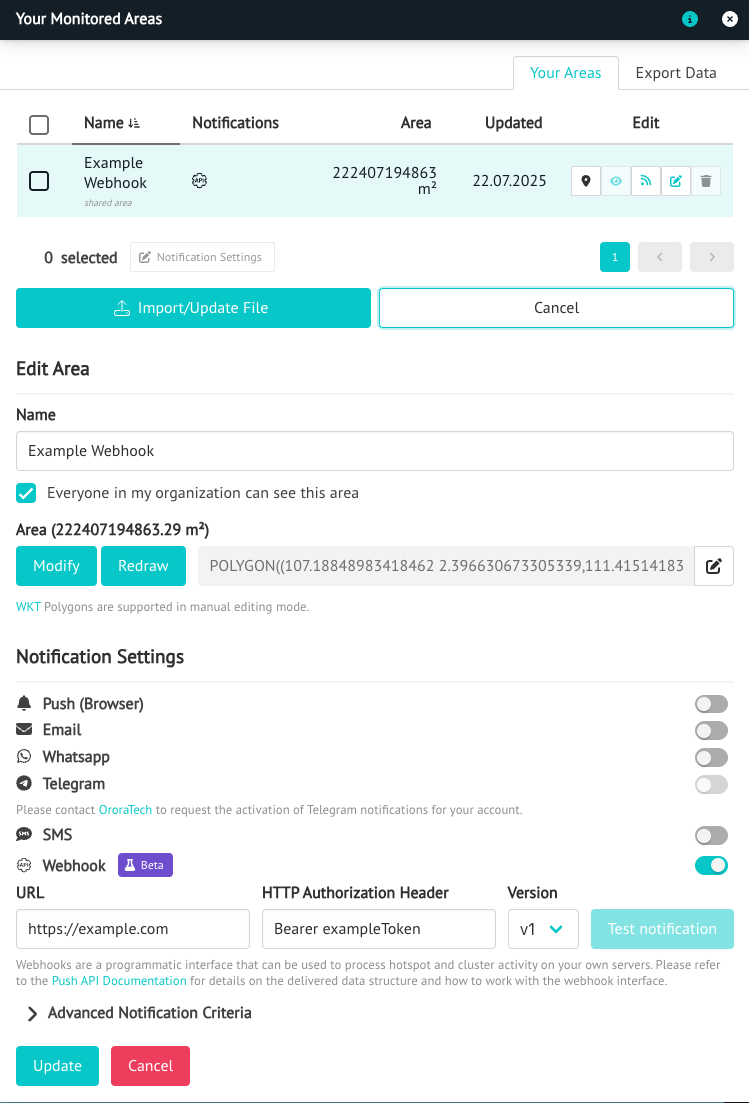
- Navigate to the monitored area
- Select Edit Notification Settings.
- Enable Webhook Notification.
- Enter the following details:
- URL: The endpoint that will receive the webhook notifications.
- HTTP Authorization Header: An additional header for authentication. This will be sent as the following header
Authorization: $VARIABLE. We recommend enforcing a check on your endpoint for added security. - Version: This is for backward compatibility. For new webhooks, ensure it is set to
v1.
- Submit your changes.
Notification Details
When a notification is triggered for a monitored area, a POST request is sent to your URL with the specified authorization header. The payload is a json structure. More information about the structure can be found in:
Example Payload
{
    "type": "FeatureCollection",
    "features": [
        {
            "type": "Feature",
            "geometry": {
                "coordinates": [
                    [
                        [1.0, 2.0],
                        [2.0, 2.0],
                        [2.0, 3.0],
                        [1.0, 3.0],
                        [1.0, 2.0]
                    ]
                ],
                "type": "Polygon"
            },
            "properties": {
                "cause": "unknown",
                "centroid": {
                    "lat": 1.5,
                    "lon": 1.5
                },
                "confidence": 0.6,
                "id": 9999999,
                "is_merged": false,
                "location_name": "example",
                "monitored_area": "example",
                "name": "cluster #1",
                "newest_acquisition": "2025-01-01T00:00:00Z",
                "num_hotspots": 10,
                "oldest_acquisition": "2025-01-02T00:00:00Z",
                "orbit_type": 3,
                "status": "attended",
                "area": 1000,
                "type": "unclassified",
                "previous_notifications": 3,
            }
        }
    ]
}
Some important things to remember
- Geometry type can either be
PolygonorMultiPolygon idis the unique identifier of the cluster and should be used for tracking updates for clusters- The following fields can be considered as optional and could be omitted
location_namestatusancestor_idschild_ids
Testing Your Webhook
You can trigger a test notification from the dashboard to verify your endpoint is working correctly.
- Select a cluster to run the tests by right clicking it
- Open your monitored area and then the notification setting for the monitored area
- Look for the Send Test Notification button in the webhook settings.
Best Practices
Please ensure your endpoint is reachable and returns a 2xx status code when successful.